How to embed a PDF in HTML: iframe, object and embed
To embed a PDF in HTML, use an iframe with a title, a height and a download link. Plus why it fails on mobile, why it goes blank, and what to use instead.
To embed a PDF in HTML, use an <iframe> whose src points to the PDF, give it a title and a height, and put a download link next to it:
<iframe
  src="/files/annual-report.pdf"
  title="Annual report 2026 (PDF)"
  width="100%"
  height="800"
  loading="lazy"
></iframe>
<p>
  <a href="/files/annual-report.pdf">Download the annual report (PDF)</a>
</p>
On a desktop browser that’s the whole job. Chrome, Edge, Firefox and Safari all have a PDF viewer built in, and the iframe hands your file to it: the reader can scroll, zoom and download without you writing any JavaScript or adding a dependency.
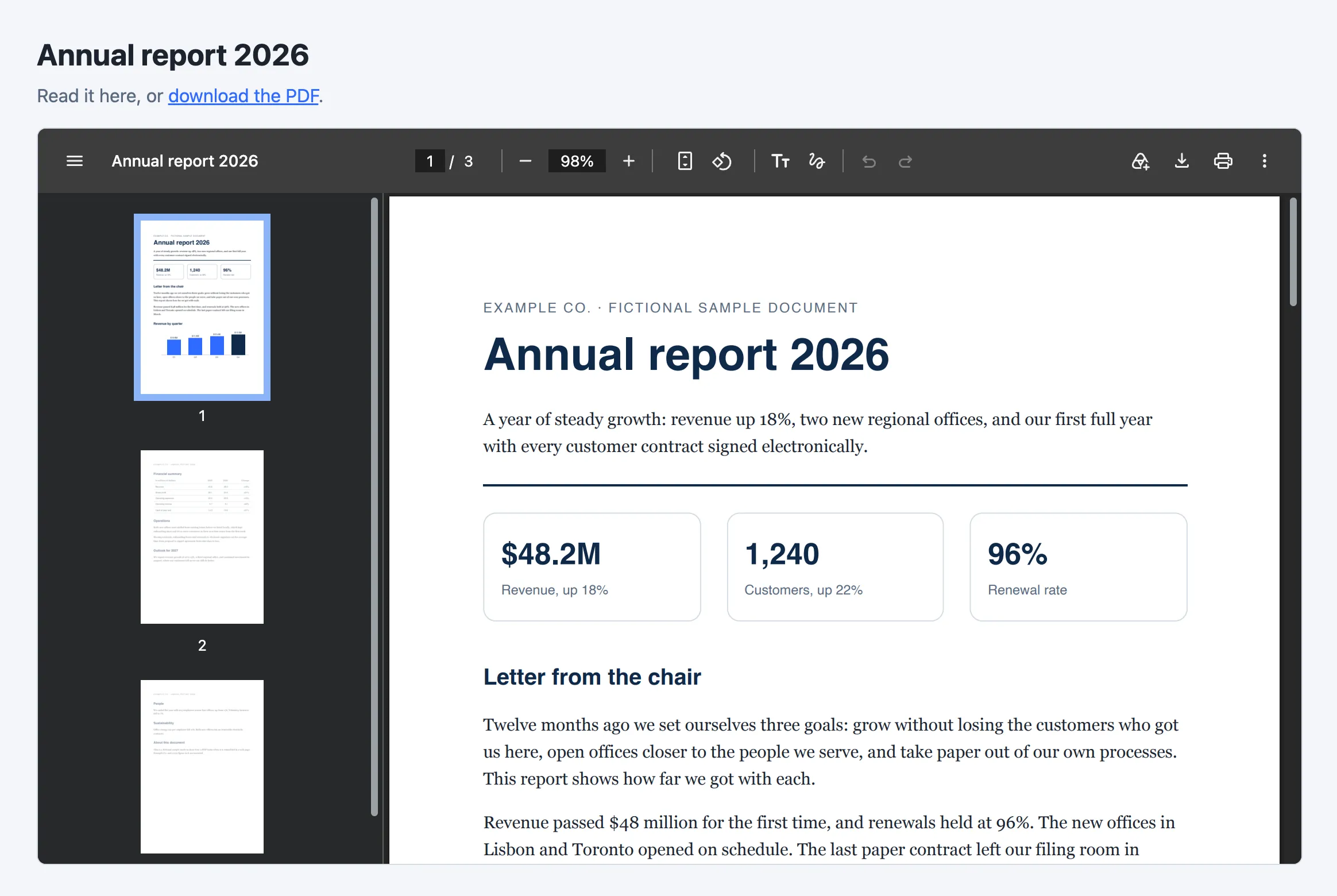
The rest of this guide covers the cases where it doesn’t go that smoothly: choosing between <iframe>, <object> and <embed>, the URL parameters that open the file at the right page, why the same embed fails on mobile, and what to use once the browser’s own viewer isn’t enough.
iframe vs object vs embed: which tag to use for a PDF
All three tags hand the file to the same built-in viewer, so on a desktop they look identical. What differs is what happens when the browser can’t show the PDF.
The <object> tag is the only one that takes fallback content. It appears when the browser has no way to display the file:
<object data="/files/annual-report.pdf" type="application/pdf" width="100%" height="800">
  <p>
    This browser can't show the PDF here.
    <a href="/files/annual-report.pdf">Download it instead</a>.
  </p>
</object>
The <embed> tag is a single element with nothing inside it, so there’s nowhere to put a fallback:
<embed src="/files/annual-report.pdf" type="application/pdf" width="100%" height="800" />
| Tag | Fallback content inside it | Good for |
|---|---|---|
<iframe> |
No, put the link after it | The default. Takes title and loading="lazy". |
<object> |
Yes | When a download link must appear if the PDF can’t show. |
<embed> |
No | Nothing the other two don’t do better. |
Our advice: use <iframe> with a download link next to it. It’s the only one of the three that supports lazy loading, and screen readers reliably announce its title as the frame’s name. Reach for <object> if you want the fallback to replace the frame instead of sitting below it. There’s no reason left to pick <embed>.
Always give the frame a height. A percentage height only works if the parent element has a definite height, and if that one is a percentage too, its parent needs one, and so on up the page. When the chain breaks, the browser falls back to the default frame size, which is 150 pixels tall. A fixed number or a viewport unit such as 80vh is the reliable choice. To keep a page’s proportions as the frame resizes, give it width: 100% and aspect-ratio: 1 / 1.414, the shape of an A4 page.
Embed a PDF without the toolbar, or open it at a page
The built-in viewers read a few parameters from the fragment of the file’s URL, the part after #:
<iframe
  src="/files/annual-report.pdf#page=3&zoom=125&toolbar=0"
  title="Annual report 2026, page 3 (PDF)"
  width="100%"
  height="800"
></iframe>
page=3opens the document at page 3.zoom=125sets the zoom in percent. Chrome also understandsview=FitH, which fits the page to the frame’s width; in Firefox,zoom=FitHdoes the same.toolbar=0hides the toolbar.
Treat these as hints. Chrome honors all three. Firefox shows PDFs with PDF.js, which reads page and zoom but ignores toolbar=0. Safari on a Mac honors page and little else. Nothing breaks when a parameter is ignored: the reader just gets the default view. The parameters come from Adobe’s “PDF open parameters”, a longer list that mostly only Acrobat reads.
Why an embedded PDF doesn’t show on mobile
Embedded PDFs fail on mobile because phone browsers don’t run a full PDF viewer inside a frame. On Android, Chrome, Firefox and Samsung Internet don’t display a PDF inside a page at all: the frame stays empty, or offers to download the file. On iPhone and iPad, Safari shows the first page as a still picture, and the reader can’t scroll on to the second. Can I use tracks the details per browser.
You can’t style or script your way around this, because the viewer isn’t part of your page. Checking navigator.pdfViewerEnabled catches the browsers that have no inline viewer:
if (!navigator.pdfViewerEnabled) {
  // No inline viewer: show a download link instead,
  // or load a JavaScript viewer (see below).
}
It won’t catch the iPhone, though. Safari reports true because it can display a PDF when you open one directly, and inside a frame you still get that single page. The <object> fallback doesn’t help there either, since Safari believes it displayed the file. If many of your readers are on phones, render the PDF with JavaScript instead.
Why a PDF iframe is blank, and how to fix it
When the frame stays empty on a desktop too, it’s usually one of these:
- The server says “download”. A
Content-Disposition: attachmentheader makes the browser save the file instead of showing it. Serve the PDF withContent-Type: application/pdfandContent-Disposition: inline. - The PDF’s response forbids framing. An
X-Frame-Optionsheader or aframe-ancestorsrule on the PDF blocks it from appearing in a frame.X-Frame-Options: DENYblocks it even on your own site, and plenty of server frameworks send that header by default. - Your page’s Content Security Policy blocks it.
frame-srclimits where an<iframe>can load from, andobject-src 'none'stops<object>and<embed>altogether. - It’s an
http:file on anhttps:page. The browser blocks it as mixed content. Serve the PDF over HTTPS. - The frame is sandboxed. Chrome won’t run its PDF viewer inside an
<iframe sandbox>, so drop the attribute for PDF frames. MDN’s iframe page notes the same. - The frame is only 150 pixels tall. That’s the default size when a percentage height can’t resolve, as described above.
Embed a PDF from a Blob or base64 data
Sometimes the PDF doesn’t have its own address: your API returns it as binary data or as a base64 string. Turn it into a Blob URL and give that to the iframe:
const res = await fetch('/api/reports/417');
const blob = await res.blob();
const url = URL.createObjectURL(new Blob([blob], { type: 'application/pdf' }));
document.querySelector('iframe').src = url;

// When the frame is gone, free the memory:
// URL.revokeObjectURL(url);
If you have a base64 string instead, decode it into bytes first:
const bytes = Uint8Array.from(atob(base64), (c) => c.charCodeAt(0));
const blob = new Blob([bytes], { type: 'application/pdf' });
The application/pdf type matters. Without it, the browser doesn’t know the data is a PDF and offers to download it. A data:application/pdf;base64,… URL in src works too, but it puts the whole file into your HTML as text, a third larger than the original, so prefer the Blob URL.
Can you embed a PDF without allowing download?
No. You can’t embed a PDF in HTML without letting people download it. The browser fetched the whole file to display it, so hiding the toolbar with toolbar=0 removes the button, not the file. Anyone can open the address in a new tab or pick it out of the network panel.
If a document mustn’t leave your server, don’t send the PDF at all. Show page images, or put it behind a viewer that you control, and accept that a screenshot is always possible.
Build an HTML PDF viewer with PDF.js
When the built-in viewer isn’t enough, the usual next step is PDF.js, Mozilla’s open-source library and the same code Firefox uses to show PDFs. It draws pages onto a <canvas> with JavaScript, so it looks and behaves the same on every browser, phones included.
npm install pdfjs-dist<canvas id="page"></canvas> <script type="module" src="/src/render-page.js"></script>
import * as pdfjsLib from 'pdfjs-dist';
// Vite: ?url gives the worker file's final address.
import workerUrl from 'pdfjs-dist/build/pdf.worker.min.mjs?url';

pdfjsLib.GlobalWorkerOptions.workerSrc = workerUrl;

const pdf = await pdfjsLib.getDocument({
  url: '/files/annual-report.pdf',
}).promise;
const page = await pdf.getPage(1);
const viewport = page.getViewport({ scale: 1.5 });

// Draw at the screen's pixel density, so the page stays sharp
// on phones and Retina displays.
const ratio = window.devicePixelRatio || 1;
const canvas = document.getElementById('page');
canvas.width = Math.floor(viewport.width * ratio);
canvas.height = Math.floor(viewport.height * ratio);
canvas.style.width = `${viewport.width}px`;
canvas.style.height = `${viewport.height}px`;

await page.render({
  canvas,
  viewport,
  transform: ratio === 1 ? undefined : [ratio, 0, 0, ratio, 0, 0],
}).promise;
We ran this with pdfjs-dist 6.5 and Vite. It needs a bundler, because both imports name the npm package. With webpack, replace the worker import with new URL('pdfjs-dist/build/pdf.worker.min.mjs', import.meta.url).href; workerSrc only takes a string. Version 6 also takes an object in getDocument(); older tutorials that pass the URL as a plain string now stop with an error.
Be clear about what you get: one page, drawn as a picture. Text selection needs a separate text layer. Scrolling through the document, zoom and search come with the PDF.js viewer components (our JavaScript PDF viewer guide builds all of that, step by step), but thumbnails and a toolbar don’t, and Mozilla asks that you build on its prebuilt viewer rather than ship it unmodified. PDF.js can add highlights, freehand drawing, text boxes and images on top of a page. It can’t change the text that’s already in the document.
For a read-only viewer that has to work on phones, PDF.js is a solid free choice. Plan for some interface work, and for keeping up with its releases.
When you need a full PDF viewer and editor in your web app
Sometimes showing the document isn’t the end of it. Your users need to fill in a form, sign, leave comments for a colleague, or fix a typo in a contract before it goes out. At that point you’re no longer embedding a PDF. You’re building a document editor.
That’s the problem we built the Kernstra Web SDK for. It’s a JavaScript PDF viewer and editor that you put in your own page. It runs in the browser, so the document is never uploaded anywhere. It comes with a finished interface: twenty-six tools, panels, undo and saving. It can also edit the text already in the PDF, in the document’s own font. Here’s the same annual report, opened with it:
import { Kernstra, PDFDocument, PDFViewer } from '@kernstra/pdf-web-sdk';

// Vite: add envPrefix: ['VITE_', 'KERNSTRA_'] to vite.config.ts,
// or the page can't read the key.
await Kernstra.init({ license: import.meta.env.KERNSTRA_LICENSE });

const doc = await PDFDocument.fromUrl('/files/annual-report.pdf');
new PDFViewer(document.getElementById('viewer')!, doc);
<div id="viewer" style="height: 80vh"></div>
<script type="module" src="/src/viewer.ts"></script>
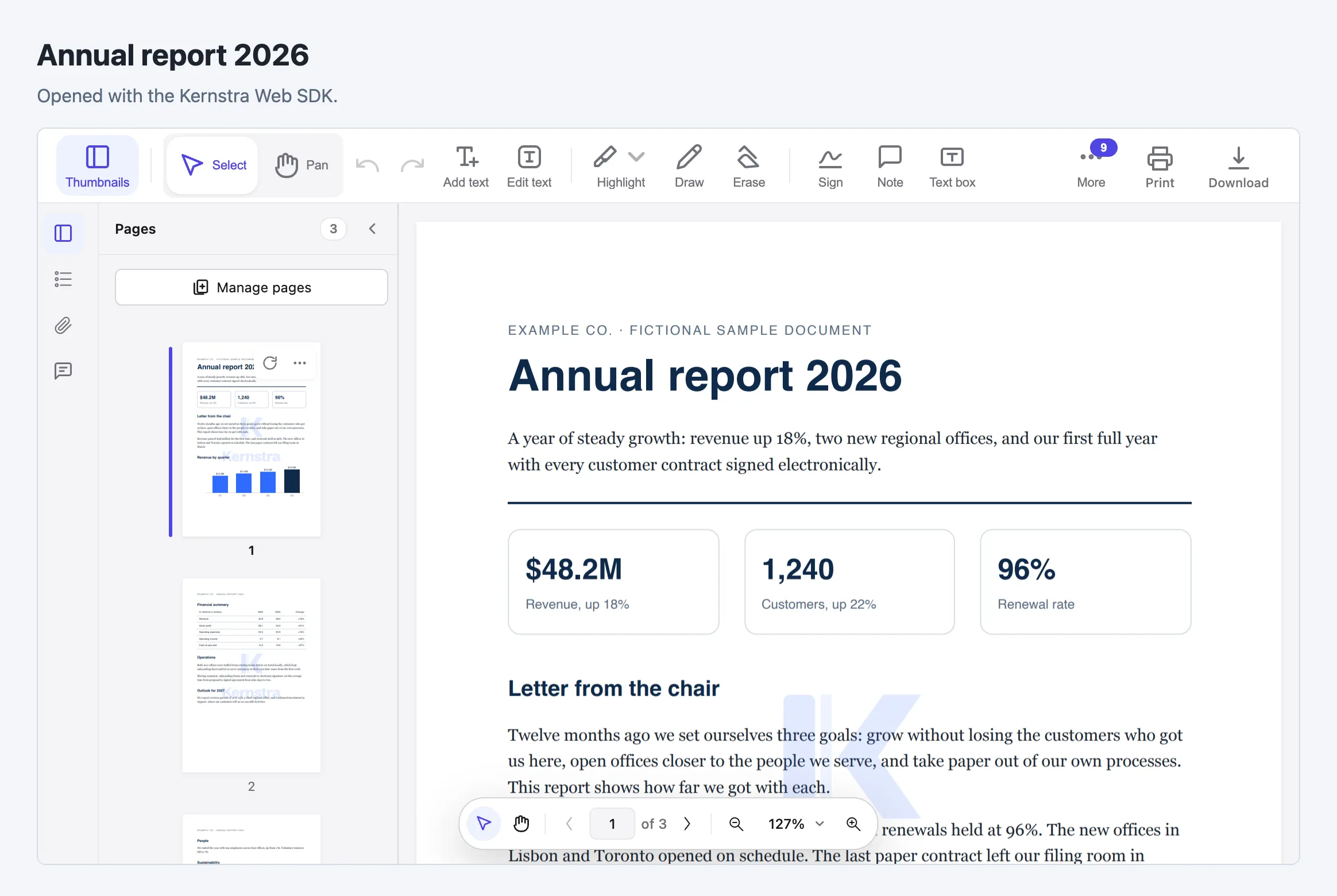
Like the iframe, the container needs a height. It works the same way in React, Vue, Angular, Svelte or a page with no framework. (For a free, read-only viewer in React, see our react-pdf guide.) If you need an embeddable PDF viewer and editor in one of those, the get started guide has a version for each.
It’s a commercial product, and we’d rather tell you that here than three pages in. Development keys are free and watermark the output. A production license for an internal app starts at $149 a month, with every tool included; public-facing apps are quoted for their use. If you only need to display PDFs, an iframe or PDF.js costs nothing and will serve you well.
You can try it on your own file in the playground, without signing up.
Which one should you use?
- Showing a PDF to desktop readers: an
<iframe>with a download link next to it. - A download link that replaces the frame when the PDF can’t show: an
<object>with the link inside. - The same viewer everywhere, phones included, and some time for interface work: PDF.js.
- Filling, signing, commenting or editing the document inside your app: a PDF SDK such as Kernstra. There’s a detailed Kernstra vs PDF.js comparison if you’re weighing the two.
Start with the iframe. Most pages never need more.
Try it with a real file
The playground opens your own PDF, with no sign-up.