React PDF viewer: a complete react-pdf 11 example
Build a React PDF viewer with react-pdf 11 and Suspense: every page, zoom, text search, a Next.js setup, the errors you'll meet, and when you need an editor.
To build a React PDF viewer, install react-pdf, point it at the PDF.js worker in the same file where you render it, and put a <Page> inside a <Document>. react-pdf is a set of React components around PDF.js, Mozilla’s open-source PDF renderer, so it draws pages the way Firefox does. This guide starts with one page and builds up to a viewer with every page, zoom, selectable text and search, then covers Next.js and the errors you’re likely to meet.
Two things have changed that older tutorials don’t know about. react-pdf 11, released in September 2026, loads documents and pages through React Suspense, so a viewer needs a <Suspense> boundary and an error boundary around it. And it requires React 19. Every sample below was run with react-pdf 11.1, React 19.3 and Vite 8, and the Next.js part with Next.js 16.4. The error messages near the end are copied from a real browser console.
Which react-pdf? react-pdf vs @react-pdf/renderer
Three npm packages have nearly the same name, and search results mix them up:
react-pdf, by Wojciech Maj, displays existing PDFs. It’s the one this guide uses.@react-pdf/renderercreates new PDFs from React components, for invoices or reports. It doesn’t display a PDF you already have.@react-pdf-viewer/corewas a popular viewer with a toolbar, but its last release, 3.12, came out in March 2023, and it only works with PDF.js 2 and 3. Tutorials still recommend it; for a new project, it’s a dead end.
Set up react-pdf
Install it, with an error boundary to catch a PDF that fails to load:
npm install react-pdf react-error-boundaryreact-pdf 11 needs React 19. PDF.js comes with it as a dependency, so you don’t install pdfjs-dist yourself. If you do, pin it to exactly the version react-pdf uses (6.5.438 for react-pdf 11.1), or you’ll have two copies and a worker that doesn’t match.
PDF.js parses the file in a Web Worker, so the page stays responsive while it works. Tell it where the worker is, in the same file as your <Document>:
import { Suspense } from 'react';
import { ErrorBoundary } from 'react-error-boundary';
import { Document, Page, pdfjs } from 'react-pdf';
import 'react-pdf/dist/Page/TextLayer.css';
import 'react-pdf/dist/Page/AnnotationLayer.css';

// In the same file as <Document>, so nothing resets it.
pdfjs.GlobalWorkerOptions.workerSrc = new URL(
  'pdfjs-dist/build/pdf.worker.min.mjs',
  import.meta.url,
).toString();

export function PdfFirstPage({ file }: { file: string }) {
  return (
    <ErrorBoundary fallback={<p>This PDF could not be opened.</p>}>
      <Suspense fallback={<p>Loading the PDF…</p>}>
        <Document file={file}>
          <Page pageNumber={1} width={600} />
        </Document>
      </Suspense>
    </ErrorBoundary>
  );
}
Use it like any component: <PdfFirstPage file="/files/annual-report.pdf" />. The PDF’s address is fetched by the browser, so a file in Vite’s public folder is at /files/….
Why “the same file”? Importing react-pdf sets the worker to a default of its own. If main.tsx sets workerSrc through pdfjs-dist directly, and react-pdf is first imported later, for example in a component loaded with React.lazy, react-pdf’s default overwrites yours. We tried it, and the PDF didn’t open: the error is in the errors section.
With pnpm, the new URL('pdfjs-dist/…') line can’t find pdfjs-dist, since it’s react-pdf’s dependency and not yours. react-pdf’s documentation says to hoist it: add public-hoist-pattern[]=pdfjs-dist to .npmrc (pnpm 10 and older), or publicHoistPattern: [pdfjs-dist] in pnpm-workspace.yaml (pnpm 11).
The two CSS imports position the text layer, which makes the text selectable, and the annotation layer, which makes links clickable. Leave them out and react-pdf warns in the console, and the page’s text appears a second time, as plain text under the page.
A complete react-pdf example: every page, and zoom
The example above shows page 1. A viewer has to show every page, and drawing all 300 pages of a long contract at once would hold more than two gigabytes of canvases on a Retina screen. So each page gets an empty box of the right size, and a page is drawn only while it’s on screen or close to it:
import { Suspense, useEffect, useLayoutEffect, useRef, useState } from 'react';
import { ErrorBoundary } from 'react-error-boundary';
import { Document, Page, pdfjs } from 'react-pdf';
import type { PDFDocumentProxy } from 'pdfjs-dist';
import 'react-pdf/dist/Page/TextLayer.css';
import 'react-pdf/dist/Page/AnnotationLayer.css';
import './PdfViewer.css';

pdfjs.GlobalWorkerOptions.workerSrc = new URL(
  'pdfjs-dist/build/pdf.worker.min.mjs',
  import.meta.url,
).toString();

export function PdfViewer({ file }: { file: string }) {
  const [pdf, setPdf] = useState<PDFDocumentProxy>();
  const [pageSize, setPageSize] = useState({ width: 612, height: 792 });
  const [scale, setScale] = useState(1);
  const [scroller, setScroller] = useState<HTMLDivElement | null>(null);
  const shownScale = useRef(scale);

  // Zooming changes every page's height: scroll by the same ratio to stay on the same page.
  useLayoutEffect(() => {
    scroller?.scrollTo({ top: scroller.scrollTop * (scale / shownScale.current) });
    shownScale.current = scale;
  }, [scale, scroller]);

  async function onLoad(loaded: PDFDocumentProxy) {
    // Page 1's size stands in for every page until each one is drawn.
    const viewport = (await loaded.getPage(1)).getViewport({ scale: 1 });
    setPageSize({ width: viewport.width, height: viewport.height });
    setPdf(loaded);
  }

  return (
    <div className="viewer">
      <div className="toolbar">
        <button
          type="button"
          aria-label="Zoom out"
          onClick={() => setScale((s) => Math.max(0.5, s - 0.25))}
        >
          −
        </button>
        <span aria-live="polite">{Math.round(scale * 100)}%</span>
        <button
          type="button"
          aria-label="Zoom in"
          onClick={() => setScale((s) => Math.min(3, s + 0.25))}
        >
          +
        </button>
        {pdf && <span>{pdf.numPages} pages</span>}
      </div>
      <div className="pages" ref={setScroller}>
        <ErrorBoundary fallback={<p>This PDF could not be opened.</p>}>
          <Suspense fallback={<p>Loading the PDF…</p>}>
            <Document file={file} onLoadSuccess={onLoad}>
              {pdf &&
                scroller &&
                Array.from({ length: pdf.numPages }, (_, i) => (
                  <LazyPage
                    key={i}
                    pageNumber={i + 1}
                    scale={scale}
                    root={scroller}
                    width={pageSize.width * scale}
                    height={pageSize.height * scale}
                  />
                ))}
            </Document>
          </Suspense>
        </ErrorBoundary>
      </div>
    </div>
  );
}

// Draws a page only while it is on screen or close to it.
function LazyPage(props: {
  pageNumber: number;
  scale: number;
  root: HTMLElement;
  width: number;
  height: number;
}) {
  const ref = useRef<HTMLDivElement>(null);
  const [near, setNear] = useState(false);

  useEffect(() => {
    const el = ref.current;
    if (!el) return;
    const observer = new IntersectionObserver(
      (entries) => setNear(entries.at(-1)?.isIntersecting ?? false),
      { root: props.root, rootMargin: '100% 0px' },
    );
    observer.observe(el);
    return () => observer.disconnect();
  }, [props.root]);

  return (
    <div ref={ref} className="slot" style={{ width: props.width, minHeight: props.height }}>
      {near && (
        <Suspense fallback={null}>
          <Page pageNumber={props.pageNumber} scale={props.scale} />
        </Suspense>
      )}
    </div>
  );
}
.viewer {
  display: flex;
  flex-direction: column;
  height: 100vh;
}

.toolbar {
  display: flex;
  gap: 8px;
  align-items: center;
  padding: 8px 12px;
  border-bottom: 1px solid #ddd;
}

.pages {
  flex: 1;
  overflow: auto;
  padding: 16px;
  background: #e8eaed;
}

.slot {
  margin: 0 auto 16px;
  background: #fff;
  box-shadow: 0 1px 4px rgb(0 0 0 / 20%);
}
The PDFDocumentProxy type comes from pdfjs-dist, which npm installs alongside react-pdf; with pnpm, the hoist step from the setup makes it importable.
We opened a 100-page file with it. At any moment two to four pages were drawn, the ones on screen and one on either side, whether the reader was at the start, the middle or the end. Four details make that work:
- A
<Suspense>around each page. Without it, a page that starts loading suspends the whole<Document>, and the “Loading the PDF…” fallback replaces every page while it loads. In our test, five jumps through the 100-page file brought the fallback back five times. With one boundary per page, only that page’s box waits. - The observer watches the scrolling box, not the window. The pages scroll inside
.pages, so that element is the observer’sroot. With the window as root, a page below the box counts as hidden until it’s actually on screen, so readers see blank boxes while they scroll. - Zoom keeps the reader’s place. Every page grows with the zoom, so the same scroll position would land on an earlier page.
useLayoutEffectscales the scroll position by the same ratio before the browser paints. Without it, zooming from 100% to 150% halfway through the file moved the reader from page 50 back to page 33. - Pages that scroll away are released.
nearturns false again and the<Page>unmounts, which frees its canvas. Keeping every page drawn costs about 8 MB per A4 page atscale={1}on a Retina screen.
If the file prop can change while the viewer is on screen, render it as <PdfViewer key={file} file={file} />, so a new document starts with fresh state instead of the old one’s page count.
One difference from a PDF reader’s numbers: react-pdf’s scale={1} draws one PDF point as one CSS pixel, so an A4 page is 595 pixels wide, not the 794 a reader calls 100%. Multiply by 96 / 72 if your label should match. The box sizes come from page 1; a document that mixes page sizes needs each page’s own size, from pdf.getPage(n).
Selectable text and links
You already have them. <Page> draws a text layer and an annotation layer by default, with the two stylesheets from the setup: text you can select and copy, and links in the PDF that open. Turn them off with renderTextLayer={false} and renderAnnotationLayer={false} when you only need a picture of the page, for a thumbnail say. react-pdf also has a <Thumbnail> component for that, and <Outline> for the document’s table of contents.
Add search, with highlighted matches
react-pdf has no search of its own. What it has is customTextRenderer, a function that receives each piece of the page’s text and returns the HTML to show in its place. Wrapping the matches in <mark> highlights them. These are the additions to PdfViewer.tsx:
// With the other state, at the top of PdfViewer:
const [query, setQuery] = useState('');
// The query the count is for, and a page number per match.
const [found, setFound] = useState({ query: '', pages: [] as number[] });
const [current, setCurrent] = useState(0);

// Count the matches on every page, not just the drawn ones.
useEffect(() => {
  if (!pdf || query.length < 2) return;
  let canceled = false;
  (async () => {
    const pages: number[] = [];
    for (let n = 1; n <= pdf.numPages; n++) {
      const text = await (await pdf.getPage(n)).getTextContent();
      for (const item of text.items) {
        if ('str' in item) pages.push(...Array(countIn(item.str, query)).fill(n));
      }
    }
    if (!canceled) {
      setFound({ query, pages });
      setCurrent(0);
    }
  })();
  return () => {
    canceled = true;
  };
}, [pdf, query]);

// Bring the current match's page into view.
useEffect(() => {
  const page = found.query === query ? found.pages[current] : undefined;
  if (page && scroller) {
    scroller.querySelectorAll('.slot')[page - 1]?.scrollIntoView({ block: 'start' });
  }
}, [found, current, query, scroller]);

// Only the count for what's in the search box now; none while a new one runs.
const matches = found.query === query ? found.pages : [];

const renderText = useCallback(({ str }: { str: string }) => highlight(str, query), [query]);
// In the toolbar:
<input
  type="search"
  placeholder="Search"
  aria-label="Search the document"
  value={query}
  onChange={(e) => setQuery(e.target.value)}
/>
<span aria-live="polite">
  {matches.length ? `${current + 1} of ${matches.length}` : query.length > 1 ? 'No matches' : ''}
</span>
<button
  type="button"
  disabled={!matches.length}
  onClick={() => setCurrent((c) => (c + 1) % matches.length)}
>
  Next
</button>

// Pass renderText through LazyPage (add it to its props), to the page:
<Page pageNumber={props.pageNumber} scale={props.scale} customTextRenderer={props.renderText} />
// At the end of the file, outside the components:
const escapeRegExp = (s: string) => s.replace(/[.*+?^${}()|[\]\\]/g, '\\$&');
const escapeHtml = (s: string) => s.replace(/[&<>"']/g, (c) => `&#${c.charCodeAt(0)};`);

function countIn(text: string, query: string): number {
  return text.match(new RegExp(escapeRegExp(query), 'gi'))?.length ?? 0;
}

// The text layer takes HTML: escape the PDF's text, then mark the matches.
function highlight(text: string, query: string): string {
  if (query.length < 2) return escapeHtml(text);
  return text
    .split(new RegExp(`(${escapeRegExp(query)})`, 'gi'))
    .map((part, i) => (i % 2 ? `<mark>${escapeHtml(part)}</mark>` : escapeHtml(part)))
    .join('');
}
.react-pdf__Page__textContent mark {
  background: rgb(255 200 0 / 45%);
  color: transparent;
}
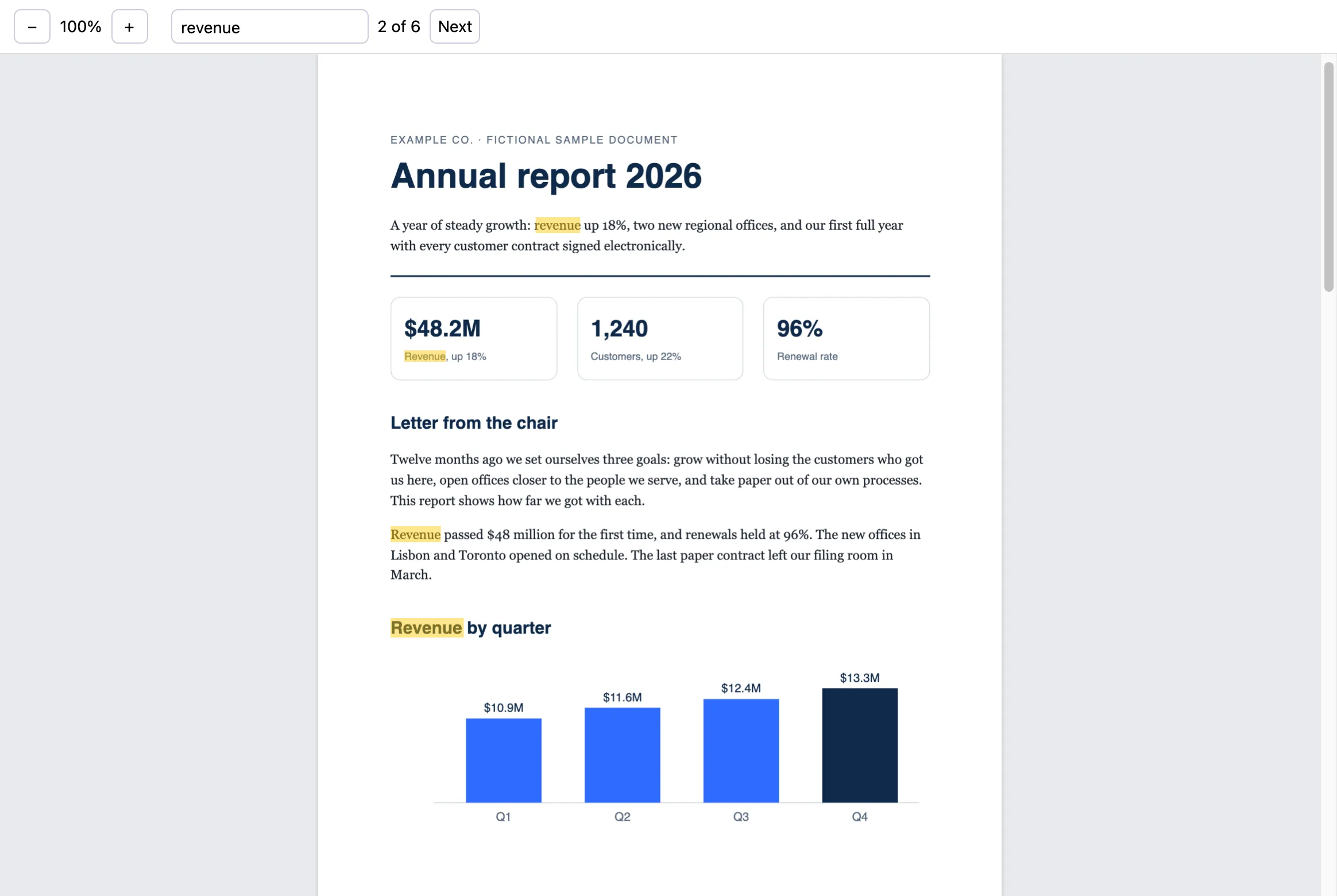
Import useCallback from React with the others. The code passes React’s own lint rules (eslint-plugin-react-hooks 7, recommended set), which is why matches is worked out from the query the count was made for, instead of being reset with state inside the effect. useCallback matters here: a new customTextRenderer on every render makes each page redraw its text layer.
Escape the text before you add <mark>. The text comes from the PDF, which can contain anything that looks like markup, and whatever customTextRenderer returns is inserted as HTML. react-pdf strips the dangerous parts on a best-effort basis, and its documentation leaves the rest to you.
This search finds a word inside one piece of text. A phrase that the PDF splits across two pieces, such as a line break in the middle of it, isn’t found, and “Next” brings the page into view rather than the match itself. PDF.js’s own find controller handles both; our JavaScript PDF viewer guide uses it outside React. For a long document, also wait until the reader stops typing before counting, since every keystroke reads every page.
A Next.js PDF viewer with react-pdf
react-pdf runs only in the browser, and in Next.js even a 'use client' component renders on the server first. Add 'use client' to the component above and import it into an App Router page directly, and the server stops (without the directive, Next.js refuses earlier, because the component uses useState):
⨯ ReferenceError: document is not defined
Load it with server rendering turned off. That’s done in a client component, since Next.js doesn’t allow ssr: false in a Server Component:
'use client';

import dynamic from 'next/dynamic';

// react-pdf needs the browser: never render it on the server.
export const PdfViewer = dynamic(() => import('./PdfViewer').then((m) => m.PdfViewer), {
  ssr: false,
});
import { PdfViewer } from '@/components/pdf-viewer-client';

export default function Page() {
  return <PdfViewer file="/files/annual-report.pdf" />;
}
Written in the page itself, dynamic(…, { ssr: false }) fails with `ssr: false` is not allowed with `next/dynamic` in Server Components. We ran both pages with Next.js 16.4: the direct import answered with a 500 error, and the dynamic one showed the PDF with its text layer.
Common react-pdf errors, and how to fix them
The ones you’re most likely to meet, with the message as react-pdf 11.1 and PDF.js 6.5 print it:
Setting up fake worker failed: "Failed to resolve module specifier 'pdf.worker.mjs'".react-pdf’s default worker setting replaced yours. SetworkerSrcin the file that renders<Document>, not inmain.tsx.The API version "6.5.438" does not match the Worker version "5.4.394".The worker came from somewhere else, typically a CDN link pinned to an older release or a secondpdfjs-distinnode_modules. Load it from react-pdf’s ownpdfjs-dist, as in the setup.Warning: TextLayer styles not found.andWarning: AnnotationLayer styles not found.The two CSS imports are missing, and the page’s text shows a second time under the page.ResponseException: Unexpected server response (404) while retrieving PDF "…"The address is wrong. Relative addresses resolve against the page’s URL, not your source file.Failed to fetch, with a CORS error in the console, when the PDF is on another domain. The file’s server has to send anAccess-Control-Allow-Originheader for your site, or serve the PDF from your own domain.ReferenceError: document is not definedin Next.js. The component rendered on the server; load it withssr: falseas above.- The whole document flashes back to its loading message while scrolling. A page suspended without its own boundary. Wrap each
<Page>in<Suspense>.
One warning from older tutorials no longer applies: they say to define <Document>’s options object outside the component, or the document reloads on every render. react-pdf 11 compares file and options by value, and in our test an inline options object didn’t reload the document or print a warning.
What react-pdf can’t do
react-pdf fills forms: give <Page> the renderForms prop and the PDF’s fields become inputs. We typed a name into a form, called pdf.saveDocument() on the document onLoadSuccess hands you, and the saved file had the name in its field.
Beyond that, react-pdf shows pages. It doesn’t include:
- Annotation tools. PDF.js 6 has editors for highlights, text boxes, drawings and signatures, but react-pdf doesn’t expose them, and their interface would be yours to build anyway. Community add-ons such as react-pdf-highlighter draw highlights over PDF.js pages; its latest npm release is an 8.0 release candidate from September 2024.
- Comments. No sticky notes, replies or review status.
- Changes to the document itself. Editing its text, rotating or reordering pages, adding a signature or a password.
- An interface. The toolbar, page numbers and search box above are what you build, as are thumbnails beside the pages, which the
<Thumbnail>component helps with.
If your users only read, react-pdf does that well, and it’s free. If they review, sign or correct the document, that list is most of the work.
When you need a React PDF editor
That’s the gap we built Kernstra for: a JavaScript PDF editor SDK with a finished interface, twenty-six tools, a comments panel and saving, which you mount from a React component of about twenty lines. It runs in the browser, so the document never passes through our servers. Here’s a quarterly review open in a React app, with a highlight, a comment and a reply in the comments panel:
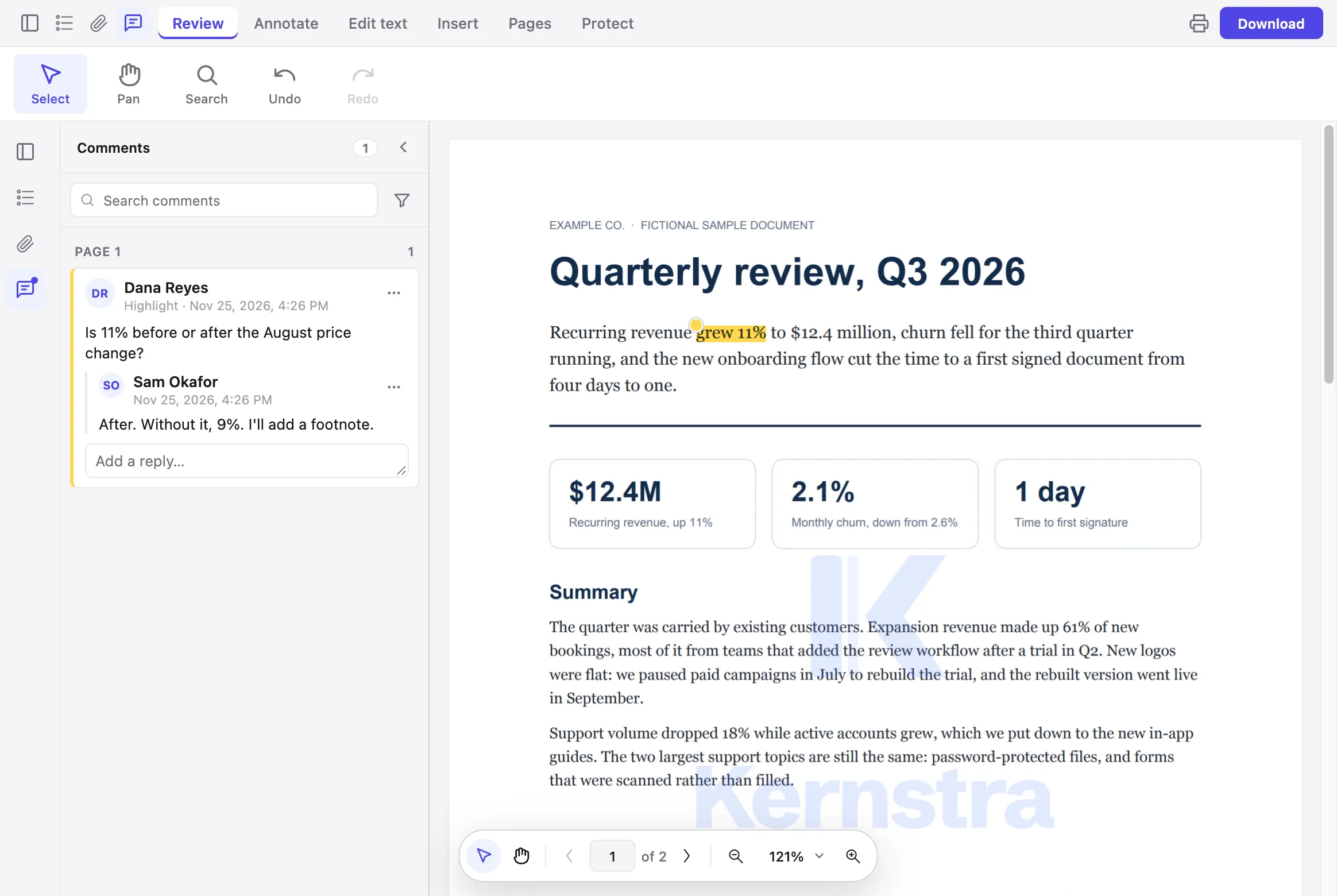
The component opens the document, shows the viewer, and cleans up when it unmounts:
import { useEffect, useRef } from 'react';
import { Kernstra, PDFDocument, PDFViewer } from '@kernstra/pdf-web-sdk';

export function DocumentViewer({ url }: { url: string }) {
  const ref = useRef<HTMLDivElement>(null);

  useEffect(() => {
    let canceled = false;
    let doc: PDFDocument | undefined;
    let viewer: PDFViewer | undefined;

    (async () => {
      // Vite: add envPrefix: ['VITE_', 'KERNSTRA_'] to vite.config.ts.
      await Kernstra.init({ license: import.meta.env.KERNSTRA_LICENSE });
      const opened = await PDFDocument.fromUrl(url);
      if (canceled) return opened.close();
      doc = opened;
      viewer = new PDFViewer(ref.current!, doc, { toolbar: { layout: 'ribbon' } });
    })().catch(console.error);

    return () => {
      canceled = true;
      viewer?.destroy();
      void doc?.close();
    };
  }, [url]);

  return <div ref={ref} style={{ height: '100vh' }} />;
}
The canceled check is there for React’s StrictMode, which mounts every component twice in development: the first viewer is destroyed before the second is made. We ran it under StrictMode and got one viewer, with no errors. In Next.js, load it with ssr: false as react-pdf above, and read the key as the get started guide’s Next.js tab does: Next.js doesn’t put your variables in import.meta.env, so the key comes from process.env.KERNSTRA_LICENSE, passed to the browser through env in next.config.ts.
To check that the comments are part of the file and not only the screen, we saved it with viewer.createExporter().getBlob() and opened the result with PDF.js. It found a highlight annotation by Dana Reyes with her question, and Sam Okafor’s reply linked to it: standard PDF annotations, so they travel with the file.
It’s a commercial product. Development keys are free and watermark the output. A production license for an internal app starts at $149 a month, with every tool included; public-facing apps are quoted for their use. The get started guide has the React and Next.js setup, and you can open your own PDF in the playground without signing up.
Which React PDF viewer should you use?
There are three kinds of React PDF viewer: a rendering library you build the interface around (react-pdf), an open-source viewer with a finished toolbar (EmbedPDF), and a commercial SDK with an editor (Kernstra, Nutrient, Apryse, Syncfusion).
| Option | What you get | Cost | Use it when |
|---|---|---|---|
| The browser’s own viewer, in an iframe | A complete viewer, but not on phones | Free | Desktop readers only need to read |
| react-pdf | Pages, text, links and forms as React components; you build the rest | Free | You want your own interface around a read-only viewer |
@react-pdf-viewer/core |
A viewer with a toolbar, with no release since March 2023 | Free | You maintain an app that already uses it |
| EmbedPDF | An open-source viewer with a finished toolbar, with a React package | Free | You want a ready-made viewer without building one |
| Nutrient, Apryse, Syncfusion and other PDF SDKs | Viewers and editors with a finished interface | Quoted by sales, usually on a yearly contract | You work with Office or CAD files, or certificate signing |
| Kernstra Web SDK | A viewer and editor with a finished interface, in a React component | Free to develop, from $149 a month in production | Users annotate, comment, sign, edit text or rearrange pages |
If you only need to show a PDF to desktop readers, our guide to embedding a PDF in HTML covers the iframe, no JavaScript needed. For a read-only viewer in React, start with react-pdf. Move to an SDK when your users need to change the document, not just read it; our Kernstra vs PDF.js comparison lists what PDF.js, and so react-pdf, leaves out.
Try it with a real file
The playground opens your own PDF, with no sign-up.