JavaScript PDF viewer: a complete PDF.js 6 example
A working PDF.js 6 example of a JavaScript PDF viewer, with every page, zoom, selectable text and search. Plus common errors, and when you need an editor.
To build a JavaScript PDF viewer, install pdfjs-dist, tell it where its worker file is, open the document with getDocument(), and draw each page onto a <canvas>. That’s PDF.js, Mozilla’s open-source PDF renderer and the same code Firefox uses to show PDFs. Everything else a viewer does (scrolling through pages, zoom, selecting text, search) you build on top, and this guide does that one step at a time.
A warning about other tutorials first. PDF.js 6 no longer accepts a plain URL in getDocument(): it takes an object, and samples written for older versions stop with an error on the first line. Every sample below was run with pdfjs-dist 6.5, and the error messages quoted near the end are copied from a real browser console.
Set up PDF.js
Install the package:
npm install pdfjs-distPDF.js does its heavy lifting in a Web Worker, so the browser tab stays responsive while it parses a large file. It needs to know where that worker script is, and with a bundler the reliable way is to import the file’s URL. In Vite that’s a ?url import:
import * as pdfjsLib from 'pdfjs-dist';
import workerUrl from 'pdfjs-dist/build/pdf.worker.min.mjs?url';

pdfjsLib.GlobalWorkerOptions.workerSrc = workerUrl;
With webpack, use new URL('pdfjs-dist/build/pdf.worker.min.mjs', import.meta.url).href instead. Keep the .href: workerSrc only takes a string, and a URL object throws Invalid `workerSrc` type. Either way, the worker comes from the same package as the library, so their versions always match. A mismatched worker is one of the most common PDF.js errors; there’s more in the errors section.
PDF.js without a bundler
No build step? Load PDF.js from a CDN as a module, and pin the worker to exactly the same version:
<!doctype html>
<html lang="en">
  <head>
    <meta charset="utf-8" />
    <title>PDF.js without a bundler</title>
  </head>
  <body>
    <canvas id="page"></canvas>
    <script type="module">
      import * as pdfjsLib from 'https://cdn.jsdelivr.net/npm/pdfjs-dist@6.5.438/build/pdf.min.mjs';

      // Same package, same version, or PDF.js refuses to start.
      pdfjsLib.GlobalWorkerOptions.workerSrc =
        'https://cdn.jsdelivr.net/npm/pdfjs-dist@6.5.438/build/pdf.worker.min.mjs';

      const pdf = await pdfjsLib.getDocument({ url: '/files/annual-report.pdf' }).promise;
      const page = await pdf.getPage(1);
      const viewport = page.getViewport({ scale: 96 / 72 });
      const canvas = document.getElementById('page');
      canvas.width = viewport.width;
      canvas.height = viewport.height;
      await page.render({ canvas, viewport }).promise;
    </script>
  </body>
</html>
Open it through a local web server, not by double-clicking the file: getDocument() fetches the PDF, and browsers don’t let a page opened from file:// fetch files. Give workerSrc a full address, too. A relative path is resolved against the library’s location on the CDN, not against your page. Everything that follows works the same way without a bundler; only the imports change.
A complete PDF.js example: every page, and zoom
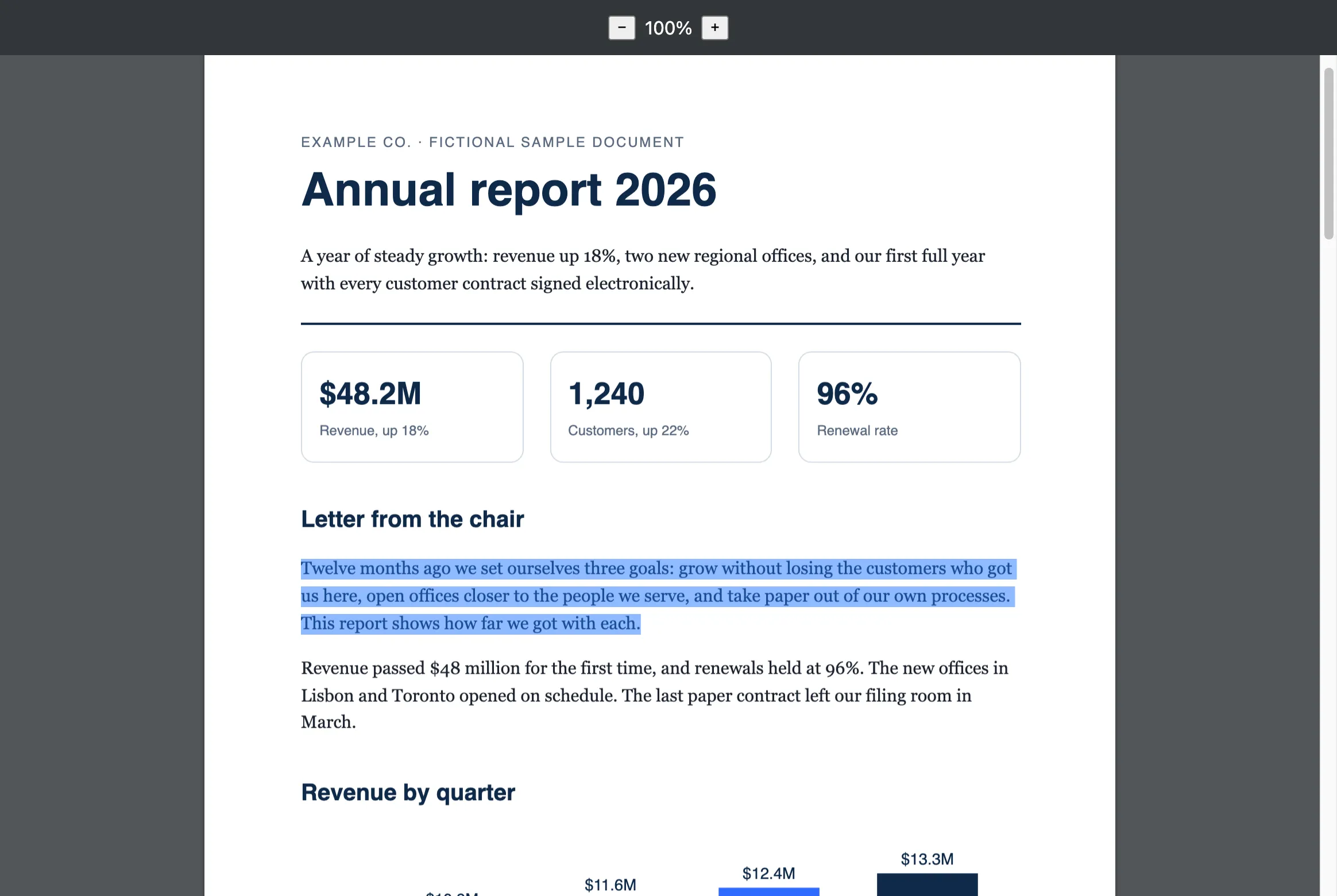
A one-page sample draws page 1 and stops. A viewer has to show every page, and a 300-page contract can’t be drawn all at once without freezing the tab. So the approach is: lay out an empty box of the right size for each page, then draw a page only when it scrolls near the screen. The HTML here and in the later steps goes in the <body> of an ordinary page that starts with <!doctype html>, as in the example above.
<link rel="stylesheet" href="/src/viewer.css" />

<div class="toolbar">
  <button id="zoom-out" type="button" aria-label="Zoom out">−</button>
  <span id="zoom-level" aria-live="polite">100%</span>
  <button id="zoom-in" type="button" aria-label="Zoom in">+</button>
</div>
<div id="pages"></div>
<script type="module" src="/src/viewer.js"></script>
body {
  margin: 0;
}

.toolbar {
  display: flex;
  gap: 8px;
  align-items: center;
  justify-content: center;
  height: 48px;
}

#pages {
  height: calc(100vh - 48px);
  overflow: auto;
  padding: 16px;
  box-sizing: border-box;
  background: #525659;
}

.page {
  position: relative;
  margin: 0 auto 16px;
  background: #fff;
}

.page canvas {
  display: block;
  width: 100%;
  height: 100%;
}
import * as pdfjsLib from 'pdfjs-dist';
import workerUrl from 'pdfjs-dist/build/pdf.worker.min.mjs?url';

pdfjsLib.GlobalWorkerOptions.workerSrc = workerUrl;

// PDF sizes are in points (1/72 inch) and CSS pixels are 1/96 inch,
// so this scale shows a page at its real size, like "100%" in a PDF reader.
const ACTUAL_SIZE = 96 / 72;

const pdf = await pdfjsLib.getDocument({ url: '/files/annual-report.pdf' }).promise;
const pagesEl = document.getElementById('pages');
const zoomLabel = document.getElementById('zoom-level');
let zoom = 1;
let layoutRun = 0;

// Draw a page only when it comes near the screen.
const observer = new IntersectionObserver(
  (entries) => {
    for (const entry of entries) {
      if (!entry.isIntersecting) continue;
      observer.unobserve(entry.target);
      drawPage(entry.target).catch(console.error);
    }
  },
  { root: pagesEl, rootMargin: '600px 0px' },
);

async function drawPage(pageEl) {
  const scale = Number(pageEl.dataset.scale);
  const page = await pdf.getPage(Number(pageEl.dataset.page));
  const viewport = page.getViewport({ scale });

  // Draw at the screen's pixel density, so text stays sharp on Retina screens.
  const ratio = window.devicePixelRatio || 1;
  const canvas = document.createElement('canvas');
  canvas.width = Math.floor(viewport.width * ratio);
  canvas.height = Math.floor(viewport.height * ratio);
  pageEl.append(canvas);

  await page.render({
    canvas,
    viewport,
    transform: ratio === 1 ? undefined : [ratio, 0, 0, ratio, 0, 0],
  }).promise;
}

// Size an empty box for every page, then let the observer fill them in.
async function layOut() {
  const run = ++layoutRun;
  const scale = zoom * ACTUAL_SIZE;
  const pageEls = [];

  for (let n = 1; n <= pdf.numPages; n++) {
    const page = await pdf.getPage(n);
    const { width, height } = page.getViewport({ scale });
    const pageEl = document.createElement('div');
    pageEl.className = 'page';
    pageEl.dataset.page = String(n);
    pageEl.dataset.scale = String(scale);
    pageEl.style.width = `${Math.floor(width)}px`;
    pageEl.style.height = `${Math.floor(height)}px`;
    pageEls.push(pageEl);
  }

  if (run !== layoutRun) return; // A newer zoom started meanwhile.
  observer.disconnect();
  pagesEl.replaceChildren(...pageEls);
  for (const pageEl of pageEls) observer.observe(pageEl);
  zoomLabel.textContent = `${Math.round(zoom * 100)}%`;
}

document.getElementById('zoom-in').addEventListener('click', () => {
  zoom = Math.min(zoom + 0.25, 3);
  layOut();
});
document.getElementById('zoom-out').addEventListener('click', () => {
  zoom = Math.max(zoom - 0.25, 0.5);
  layOut();
});

await layOut();
Three details in there are easy to get wrong:
scale: 1isn’t 100%. PDF.js measures pages in points, 72 to the inch, and the browser uses 96 CSS pixels to the inch. Atscale: 1an A4 page is 595 pixels wide and looks small. At96 / 72it’s 793 pixels, the size a PDF reader calls 100%.- Text goes blurry on Retina screens unless you account for them. A canvas sized in CSS pixels has half the pixels a high-density screen can show. Make the canvas
devicePixelRatiotimes larger and pass the ratio torender()as atransform, asdrawPage()does. - A second click on zoom can start before the first layout finishes. Without the
layoutRuncheck, both runs add their pages and the document appears twice.
This viewer leaves out two things a production one needs. It doesn’t keep the reader’s place when they zoom: the scroll position stays where it was in pixels, so they land somewhere else in the document. And it never frees a page it has drawn. At a pixel ratio of 2, one A4 page’s canvas holds about 14 MB, so scrolling to the end of a 100-page file keeps well over a gigabyte of canvases, far more than Safari on an iPhone lets a page use. Both are bookkeeping, and the PDF.js viewer component below does both for you. On very long files, also expect layOut() to take a moment, since it asks for every page’s size before showing the first.
Make the text selectable
What you have so far is a picture of each page. Readers can’t select a sentence, copy a figure, or use their browser’s find. PDF.js fixes that with a text layer: transparent text laid exactly over the canvas, so selecting it looks like selecting the page.
Add the viewer stylesheet, which positions the text layer, to the top of src/viewer.js:
import 'pdfjs-dist/web/pdf_viewer.css';
Give each page box the scale the text layer should use, in layOut(), next to the width and height:
pageEl.style.setProperty('--total-scale-factor', String(scale));
Draw the text layer at the end of drawPage(), once the canvas is done:
// Invisible text over the picture, so readers can select and copy it.
const textEl = document.createElement('div');
textEl.className = 'textLayer';
pageEl.append(textEl);
await new pdfjsLib.TextLayer({
  textContentSource: page.streamTextContent(),
  container: textEl,
  viewport,
}).render();
And add these two lines inside the .page rule in src/viewer.css:
--scale-round-x: 1px;
--scale-round-y: 1px;
The CSS variables are the part most tutorials miss. PDF.js sizes the text layer and its fonts with --total-scale-factor, --scale-round-x and --scale-round-y. Its own viewer sets them, but a viewer you build yourself has to. Without --total-scale-factor the text layer still appears, but its text is drawn at the wrong size: in our test, the selectable copy of the title came out at about 40% of the title’s real width, so selections stopped matching the words. Without the stylesheet, the “invisible” text shows up as plain black text underneath the page.
The stylesheet is large, because it covers the whole PDF.js viewer. If you’d rather not ship it, copy its .textLayer rules into your own CSS.
Add search with the PDF.js viewer component
Search, links inside the document, keeping the reader’s place on zoom and freeing pages that scroll away are where a hand-built viewer starts to grow. PDF.js ships the components its own viewer is made of, in pdfjs-dist/web/pdf_viewer.mjs, and the PDFViewer class does all of that for you: it lays out the pages, draws only the visible ones, adds the text layer and the links, and works with a find controller for search.
<link rel="stylesheet" href="/src/component.css" />

<div class="toolbar">
  <input
    id="search"
    type="search"
    placeholder="Search the document"
    aria-label="Search the document"
  />
  <span id="matches" aria-live="polite"></span>
</div>
<div id="viewer-container">
  <!-- PDFViewer draws the pages into this element. -->
  <div id="viewer" class="pdfViewer"></div>
</div>
<script type="module" src="/src/component.js"></script>
body {
  margin: 0;
}

.toolbar {
  display: flex;
  gap: 12px;
  align-items: center;
  justify-content: center;
  height: 48px;
}

/* PDFViewer requires an absolutely positioned, scrolling container. */
#viewer-container {
  position: absolute;
  inset: 48px 0 0;
  overflow: auto;
}
import * as pdfjsLib from 'pdfjs-dist';
import {
  EventBus,
  PDFFindController,
  PDFLinkService,
  PDFViewer,
} from 'pdfjs-dist/web/pdf_viewer.mjs';
import 'pdfjs-dist/web/pdf_viewer.css';
import workerUrl from 'pdfjs-dist/build/pdf.worker.min.mjs?url';

pdfjsLib.GlobalWorkerOptions.workerSrc = workerUrl;

const eventBus = new EventBus();
const linkService = new PDFLinkService({ eventBus });
const findController = new PDFFindController({ eventBus, linkService });
const viewer = new PDFViewer({
  container: document.getElementById('viewer-container'),
  eventBus,
  linkService,
  findController,
});
linkService.setViewer(viewer);

// Fit the pages to the window's width once they're laid out.
eventBus.on('pagesinit', () => {
  viewer.currentScaleValue = 'page-width';
});

const pdf = await pdfjsLib.getDocument({ url: '/files/annual-report.pdf' }).promise;
viewer.setDocument(pdf);
linkService.setDocument(pdf);

// Search as the reader types, and highlight every match.
const searchEl = document.getElementById('search');
const matchesEl = document.getElementById('matches');

searchEl.addEventListener('input', () => {
  eventBus.dispatch('find', {
    type: '',
    query: searchEl.value,
    highlightAll: true,
    caseSensitive: false,
    entireWord: false,
    findPrevious: false,
    matchDiacritics: false,
  });
});

// The count arrives in two events: one while searching, one when it's done.
const showMatches = ({ matchesCount: { current, total } }) => {
  if (!searchEl.value) matchesEl.textContent = '';
  else matchesEl.textContent = total ? `${current} of ${total}` : 'No matches';
};
eventBus.on('updatefindmatchescount', showMatches);
eventBus.on('updatefindcontrolstate', showMatches);
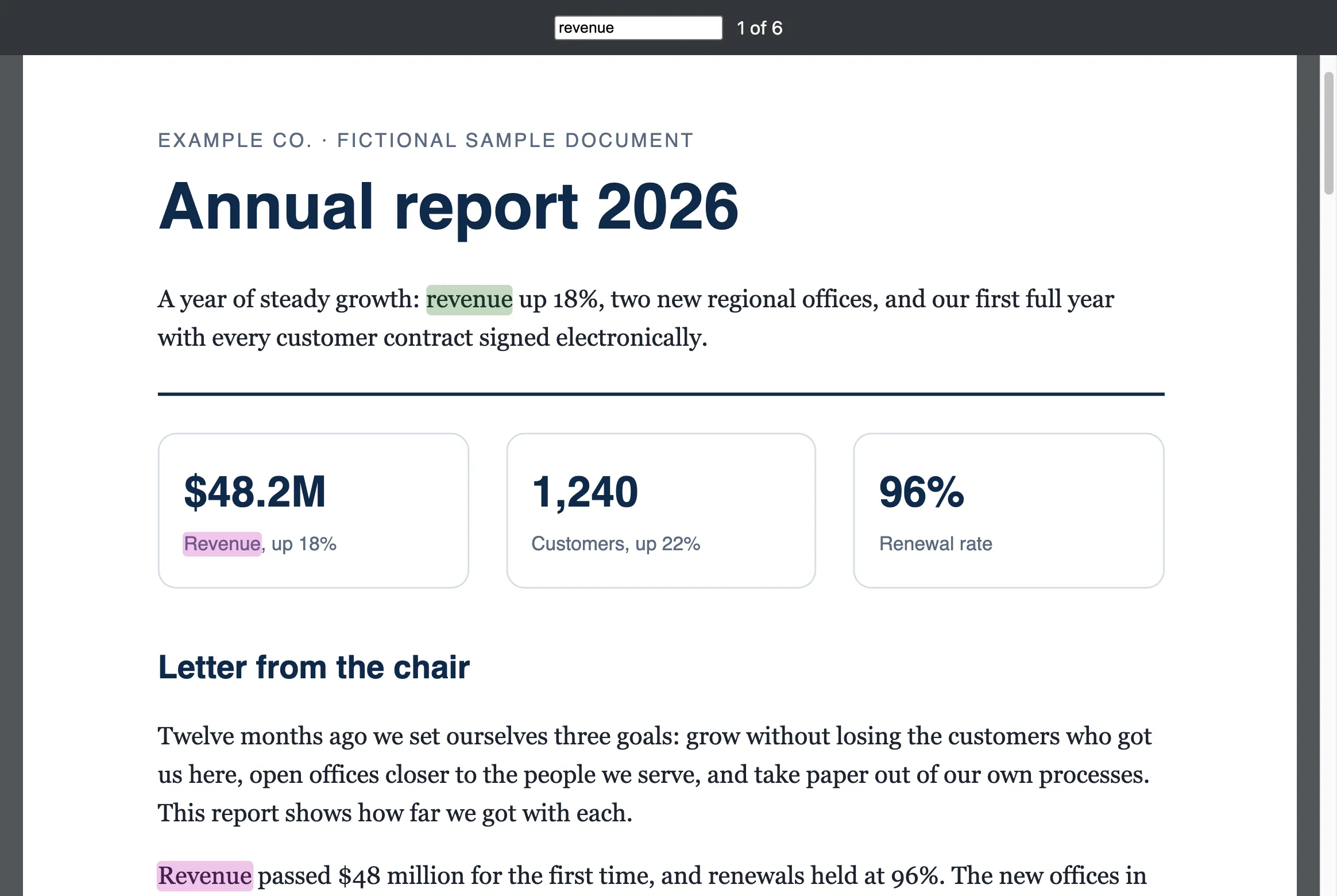
Two things to know. The order of the imports matters: pdfjs-dist has to come before pdf_viewer.mjs, because the viewer reads the library from a global that pdfjs-dist sets when it loads. And this gives you the page area, not an interface. Buttons for zoom, page numbers, thumbnails and a toolbar are still yours to build.
If you’d rather not build an interface at all, Mozilla’s releases include its complete viewer, web/viewer.html, the same viewer Firefox shows, packaged for websites. Host it on your site and open viewer.html?file=/files/annual-report.pdf in an iframe. By default it only opens files from its own origin, and Mozilla asks that you build on it and make it your own rather than ship it unmodified.
Common PDF.js errors, and how to fix them
These are the ones you’re most likely to meet, with the message exactly as PDF.js 6.5 prints it:
No "GlobalWorkerOptions.workerSrc" specified.You opened a document before setting the worker. SetpdfjsLib.GlobalWorkerOptions.workerSrcfirst, as in the setup above.Setting up fake worker failed: "Failed to fetch dynamically imported module: …"The worker’s address is wrong, so the file can’t be loaded. Check the URL in the message: a relativeworkerSrcis resolved against the library’s location, which is a CDN if you loaded it from one.The API version "6.5.438" does not match the Worker version "6.4.299".The worker came from somewhere else, usually a CDN link pinned to an older release while npm installed a newer library. Load the worker from the same package and version.getDocument - expected either `data`, `range`, or `url` parameter.You passed the URL as a string, as older tutorials do. Version 6 takes an object:getDocument({ url: '/file.pdf' }).Cannot destructure property 'AbortException' of 'globalThis.pdfjsLib' as it is undefined.You importedpdfjs-dist/web/pdf_viewer.mjsbeforepdfjs-dist. Swap the two imports.The `container` must be absolutely positioned.PDFViewermeasures its scrolling container and needs it absolutely positioned. Give itposition: absoluteand a size, as in the CSS above. You also get this when the page’s stylesheet hasn’t loaded.UnknownErrorException: Failed to fetchwhen the PDF lives on another domain. That’s CORS, even though the message doesn’t say so: the browser blocked the response because the file’s server didn’t allow your site to read it. Have that server send anAccess-Control-Allow-Originheader for your site, or serve the PDF from your own domain.InvalidPDFException: Invalid PDF structure.The address returned something that isn’t a PDF, typically your single-page app’sindex.htmlor a login page sent back with a 200 status. Open the PDF’s URL in a new tab and see what comes back.ResponseException: Unexpected server response (404) while retrieving PDF "…"The URL is wrong, or relative to a different folder than you think.- Selections don’t match the words, or text shows twice. The text layer’s stylesheet or CSS variables are missing. See the text layer section.
What PDF.js can’t do
PDF.js 6 has an editor too. It can add highlights, text boxes, images, freehand drawings, comments and a drawn signature, and it fills in forms. pdf.saveDocument() then gives you the file with those changes in it. As with search, PDF.js provides the engine: the buttons, colour pickers and panels for those tools are yours to build.
Some things are outside what it does:
- Change the text that’s already in the PDF. Fixing a typo, a date or a figure in the document’s own words and font.
- Rotate pages, or manage them from an interface. Version 6.5 can build a new PDF from the pages you choose, in the order you choose, with
extractPages(). But it can’t rotate a page in the saved file, and the page-organizing view is switched off by default in the release. - Draw shapes. There are no rectangles, ellipses, arrows or polygons.
- Design forms. It fills the fields a PDF already has, but can’t add new ones.
- Protect the file. It opens password-protected PDFs, but can’t set or remove a password.
If your users only read, none of this matters. If they work on the document, it usually does, and every item on that list except designing forms is a built-in tool in Kernstra; its Form Designer is coming next. Our Kernstra vs PDF.js comparison goes through what PDF.js leaves out, feature by feature.
When you need a JavaScript PDF editor, not just a viewer
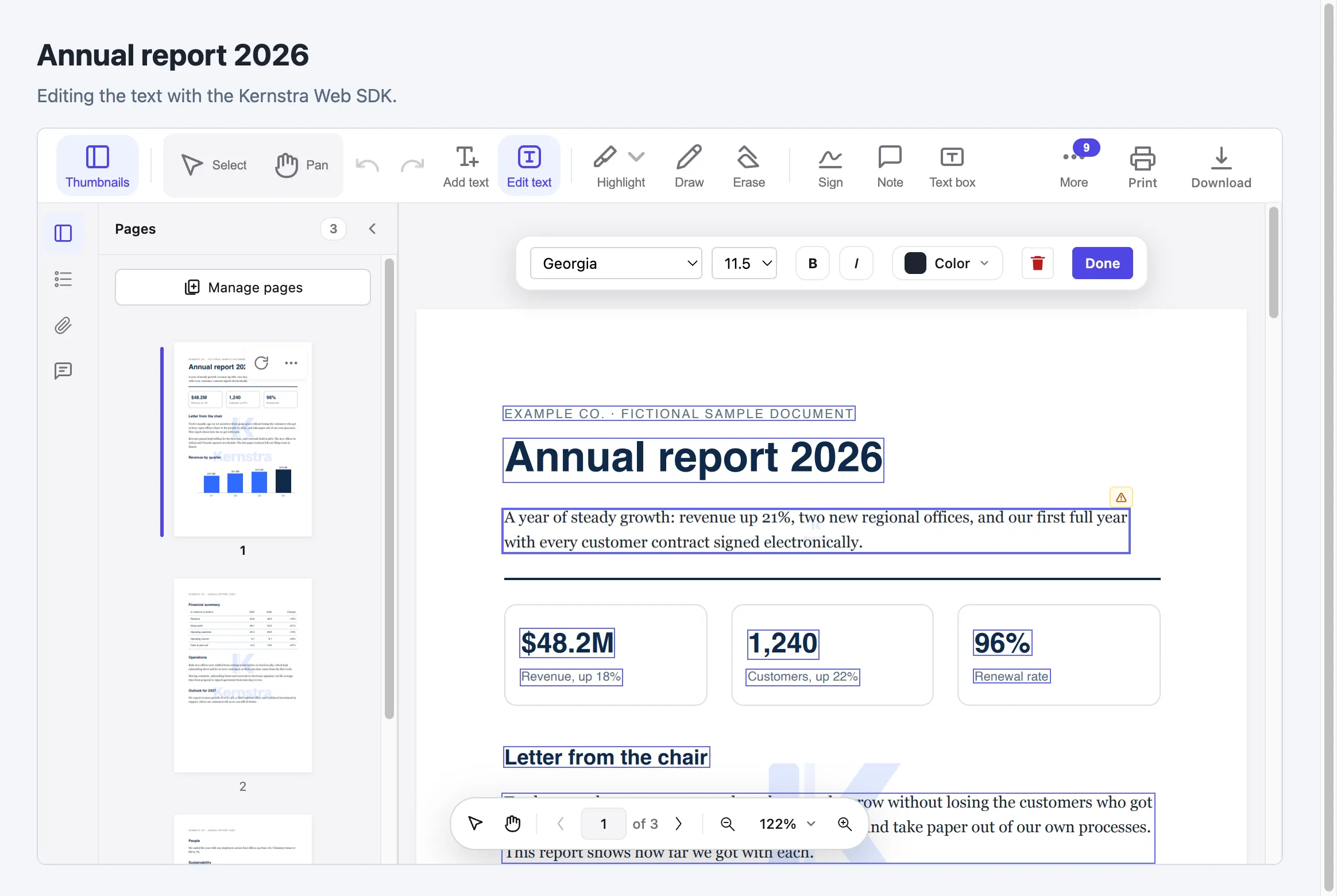
This is the gap we built Kernstra for: a JavaScript PDF editor SDK that runs in your page, with a finished interface. It has twenty-six tools, the page manager among them, plus a comments panel, one undo history for everything, and saving. It runs in the browser, so the document never passes through our servers. Here’s the same annual report in Kernstra, with the Edit text tool changing a figure in the first paragraph:
The code is the setup plus a save button:
<button id="save" type="button">Save</button>
<div id="viewer" style="height: 80vh"></div>
<script type="module" src="/src/editor.ts"></script>
import { Kernstra, PDFDocument, PDFViewer } from '@kernstra/pdf-web-sdk';

// Vite: add envPrefix: ['VITE_', 'KERNSTRA_'] to vite.config.ts,
// or the page can't read the key.
await Kernstra.init({ license: import.meta.env.KERNSTRA_LICENSE });

const doc = await PDFDocument.fromUrl('/files/annual-report.pdf');
const viewer = new PDFViewer(document.getElementById('viewer')!, doc);

// The edited PDF as a file, ready to upload.
document.getElementById('save')!.addEventListener('click', async () => {
  const blob = await viewer.createExporter().getBlob();
  const res = await fetch('/api/reports/417', { method: 'PUT', body: blob });
  if (!res.ok) throw new Error(`Upload failed: ${res.status}`);
});
Compare that with the PDF.js version above: about 90 lines of JavaScript for pages, zoom and selectable text, and still no toolbar, thumbnails, annotation tools or saving. Here it’s about fifteen lines, and the interface comes with them.
To check the edit, we opened the exported file in PDF.js, which knows nothing about Kernstra. The first paragraph read “revenue up 21%”, as real text in the document, not a box drawn on top. The same viewer runs in React, Vue, Angular and Svelte, and the get started guide has the setup for each.
It’s a commercial product. Development keys are free and watermark the output. A production license for an internal app starts at $149 a month, with every tool included; public-facing apps are quoted for their use. You can open your own PDF in the playground without signing up.
Which JavaScript PDF viewer should you use?
| Option | What you get | Cost | Use it when |
|---|---|---|---|
| The browser’s own viewer, in an iframe | A complete viewer, but not on phones | Free | Desktop readers only need to read |
| PDFObject | The iframe, with a fallback when the browser can’t show the PDF | Free | You want the iframe with less code |
| PDF.js by hand | Pages, zoom and selectable text, with your own interface | Free | You want full control over a read-only viewer |
PDF.js PDFViewer component |
Adds search, links, page-width zoom, and keeps the reader’s place | Free | Readers need to search, and you’ll build the toolbar |
| react-pdf | PDF.js wrapped in React components | Free | You’re in React and only need to show pages (our react-pdf guide) |
| EmbedPDF | An open-source viewer with a finished toolbar, thumbnails and search | Free | You want a ready-made viewer without building one |
| Nutrient, Apryse and other PDF SDKs | Viewers and editors with a finished interface | Quoted by sales, usually on a yearly contract | You work with Office or CAD files, or certificate signing |
| Kernstra Web SDK | A viewer and editor with a finished interface | Free to develop, from $149 a month in production | Users annotate, fill, sign, edit text or rearrange pages |
If you only need to show a PDF to desktop readers, you may not need JavaScript at all: our guide to embedding a PDF in HTML covers the iframe and its limits. Otherwise, start with PDF.js. Move to an SDK when your users need to change the document, not just read it.
Try it with a real file
The playground opens your own PDF, with no sign-up.